Setting up your profile
Set up your inbox profile so artists know exactly who they're sending music to, from your display name and photo to links, verification and Featured Tracks.
Related: Preferences and visibility
Your profile is the public identity that artists, DJs and labels see when they interact with your inbox. A well set up profile builds trust, improves the quality of what you receive and creates stronger professional connections.
You'll find everything below in Inbox settings, under Profile, unless a step says otherwise.
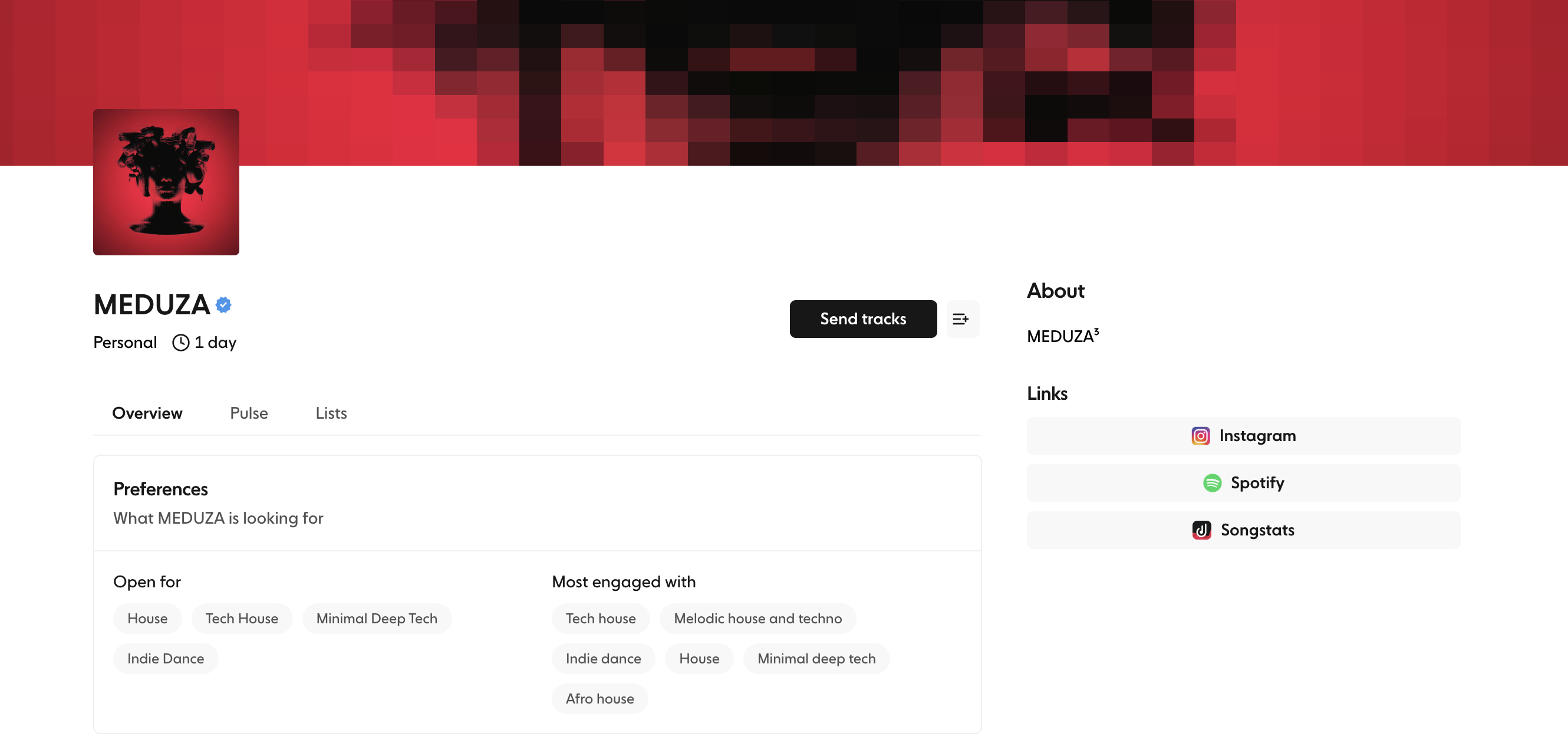
Set your display name#
Your display name is the identity artists and contacts see when they submit to you, view your inbox or receive tracks from you.
Examples:
Artist name (e.g. Jamie Jones)
Label name (e.g. Hot Creations)
Brand or collective name (e.g. Mason Collective)
Choose a name that tells senders immediately who they're submitting to. Your inbox profile is also your sender profile, so you only need to set this up once.
Add your inbox photo#
Your inbox photo appears on your profile and next to everything you send. You can also add a banner, shown at the top of your profile.
To upload your photo:
Open Inbox settings and go to Profile
Upload a square image (we recommend 256×256px)
Your photo saves as soon as the upload finishes
Use a clear, recognisable image such as your artist photo, label logo or brand icon.
Add your bio#
Your bio tells senders what you're about and what kind of music you're looking for. It sets expectations and can cut down irrelevant submissions. It's optional but recommended, and you can choose whether it shows on your public submission page.
Use your bio to share:
Your role (DJ, label, curator, producer, etc.)
The genres you care about
What you're currently looking for
Any submission tips or preferences
Even a short 1 to 2 sentence bio can make a big difference.
Set your location#
Add your country and city under Location & Contact. Your location appears on your profile and helps artists understand your region and time zone.
This is especially helpful for:
DJs playing region-specific sets
Labels focused on certain markets
Curators creating location-based playlists
Add links and social profiles#
Link your social accounts, streaming profiles and websites to give artists more context and credibility.

You can add up to 20 links, including Instagram, Spotify, SoundCloud, YouTube, TikTok, Apple Music, Bandcamp, Beatport and your own website. To connect Songstats, go to Inbox settings, then Integrations.
These links appear on your profile and help strengthen your professional identity. Artists that add these to their profile stand a higher chance of being signed to labels.
Customise your public inbox link#
Your inbox gets a public link based on its handle (e.g. yourname.tstack.link). Change the handle in Inbox settings under Sharing, then Public Handle.
A clean handle is easier to share and looks more professional across social platforms. Think of it like your Instagram or X handle.
Get verified#
Verification adds a blue tick to your profile and confirms your inbox belongs to a legitimate DJ, label or industry professional. This helps protect artists' intellectual property and reassures them their music is going to trusted members of the Trackstack community.
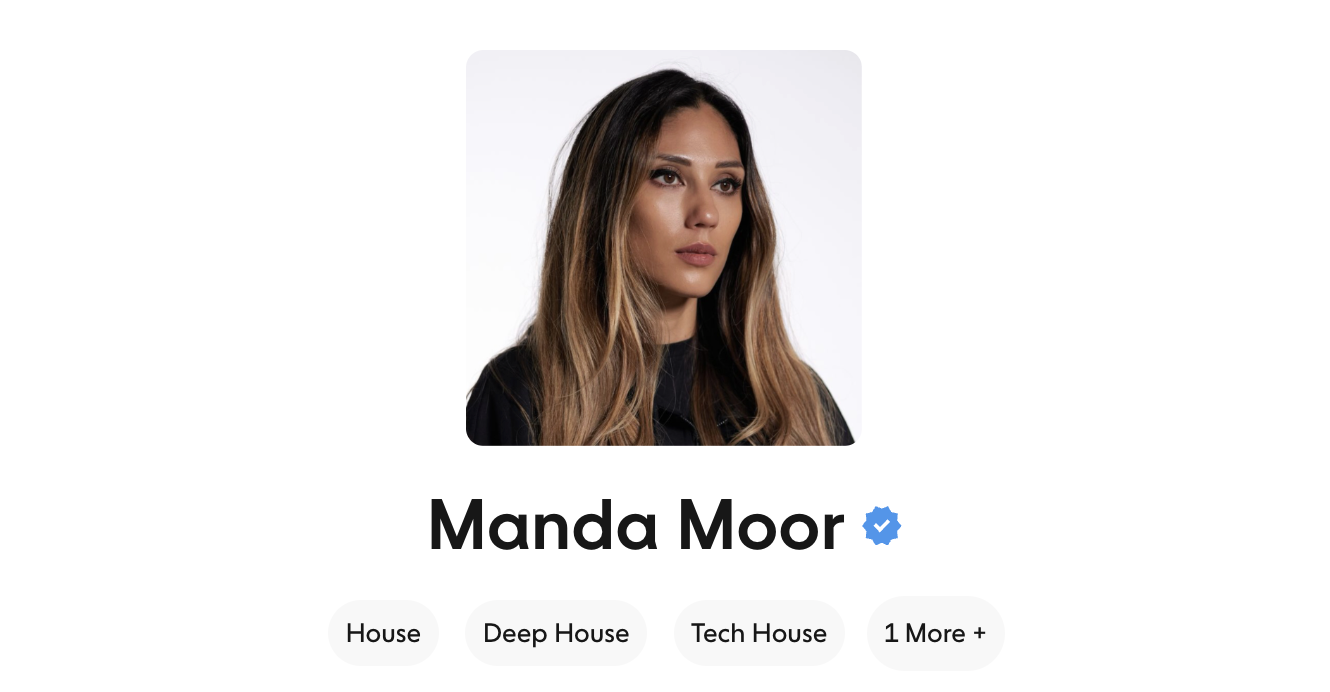
Benefits of verification:
Your inbox appears higher in search, increasing visibility and submissions.
Artists can send their tracks confidently, knowing they're reaching a real professional.
Higher trust leads to higher quality submissions.
Your profile displays a blue verification badge everywhere your inbox appears.
How to get verified:
Open Inbox settings and go to Sharing
Under Verification, check whether your inbox is already verified
If it isn't, email your request to support@trackstack.app
Once approved, your blue badge appears on your profile and public inbox automatically. Once you're verified, your public handle is locked, so contact support if you ever need to change it.
Featured Tracks#
Featured Tracks let you showcase selected music directly on your profile. They help artists understand your sound, see what you support or play, and get a feel for the submissions you're looking for.
How Featured Tracks work
Choose any tracks from your Library and arrange them in the order you want. They're pinned at the top of your profile.
Use Featured Tracks to highlight:
Tracks you've supported or signed
Music you regularly play
Releases from your label
Sounds that best reflect your style
How to manage Featured Tracks
Open Inbox settings, go to Profile and scroll to Featured Tracks.
Click Add track and pick a track from your Library.
Drag tracks to reorder how they appear publicly.
Changes apply instantly, with nothing to save.
You can also upload a new track from the picker if you'd like to feature music that isn't in your Library yet. Each Featured Track has a Downloads switch if you want listeners to be able to download it.
Featured Tracks help senders understand your taste and increase the relevance and quality of the submissions you receive.